Penn-Harris-Madison School Corporation uses ParentSquare for school communication, primarily with email, text and app notifications. Penn High School students can download the app and use the student version, StudentSquare; click here for more info.
ParentSquare automatically generates an account for each parent, using their preferred email address and phone number. We encourage parents/guardians to access their accounts so they can download the mobile app and update their preferences on when and how they are notified.
Parents/guardians receive alerts, updates, and posts on:
- Urgent Alerts, such as School Closings and Delays
- Principal & Teacher Newsletters
- School & Classroom Calendar of Events
- Fill out Permission Slips & other Required Forms
- Volunteer, RSVP for events, Item Donation Sign-up
- Attendance Notifications
Below are two videos about ParentSquare. The first is a short introduction to the platform and the second is a longer video at just over 14 minutes that gives more in depth training on ParentSquare. We encourage our families to take the time to watch both videos as they will answer many of your questions.
Watch the short ParentSquare Introduction Video below:
Link to ParentSquare Overview Video on Vimeo
Watch a 14:23 ParentSquare Parent & Guardian Training Video below:
Troubleshooting Q&A
Q. How do I update my language preference?
A. Make the change in your Account Settings.
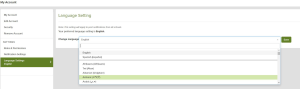
- Click on your name in the upper right hand corner (beside the heart and question mark in the circle). This will bring you to the My Account screen.
- Click Language Settings under Settings
- Select language and save.
- On the app, tap the triple-bar menu at the top left, then go to Account > Preferences > Language.
Q. How do I change my email or phone in ParentSquare?
A. You can call the school office and ask for your contact information to be updated. After the school updates the information, the new contact details will be in ParentSquare the next day.
Q. I am missing a student on my account. How can I add another student?
A. To add a child or school, you should contact your school(s) directly to update your contact information. You should confirm that the same email and phone number is on file for all children at all schools. The day after the change is made at the school, you should be able to see the updated information in ParentSquare.
Q. How do I send a message to my child’s teacher?
A. On the web, you can click Messages in the sidebar and start a direct conversation by clicking New Message. On the ParentSquare App, you can tap Messages at the bottom, then the write icon at the top to start a new message. You will see their child’s teacher and group owners in the quick-select recipient’s box at the top of the page. Or, you can type the first three letters of a name in the recipient box for other users to
auto-populate.
Q. How can I subscribe to the ParentSquare calendar?
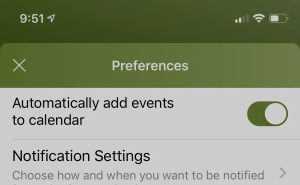
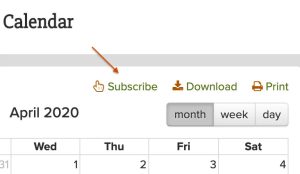
A. On the web, from the left navigation toolbar under the Explore section, select Calendar and then click Subscribe in the top right. On the app, tap the triple bar menu, then Account > Preferences and then select Add events to calendar. School, class, and group events will be added to your personal calendar. You should follow their computer or mobile device’s default calendar application instructions.
Q. How can I learn more about ParentSquare?
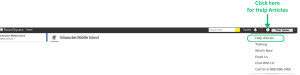
A. Click here for ParentSquare Help Articles to help you navigate setting up your account with “How To” articles, step-by-step instructions, and a series of video demonstrations. These Help Articles are always accessible by clicking on the question mark in the top right hand corner when you are logged into ParentSquare. The question mark is between the red heart and your name.
If you are having technical problems, please email P-H-M Technology Department at FamilyAccess@phm.k12.in.us .
Q. I’m getting too many notifications. How do I change that? Can I set different notification settings for different schools?
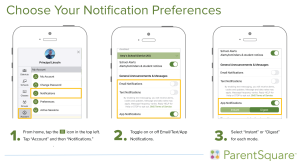
A. You can set your notification preferences to receive a daily digest email, text or app notification with all updates at the end of the day. On the web, click on your name to bring up your accounts page to update notification preferences. On the app, tap the triple-bar menu, then go to Account > Notifications. Yes, parents can now have different settings for each school and district.
Please note, we cannot remove phone numbers or change both parents/guardian’s phone numbers to be the same in ParentSquare. If one Parent would like to turn off notifications for Posts and School Alerts, that can be done through account settings. Please watch this video on how to update your Notification Settings.